


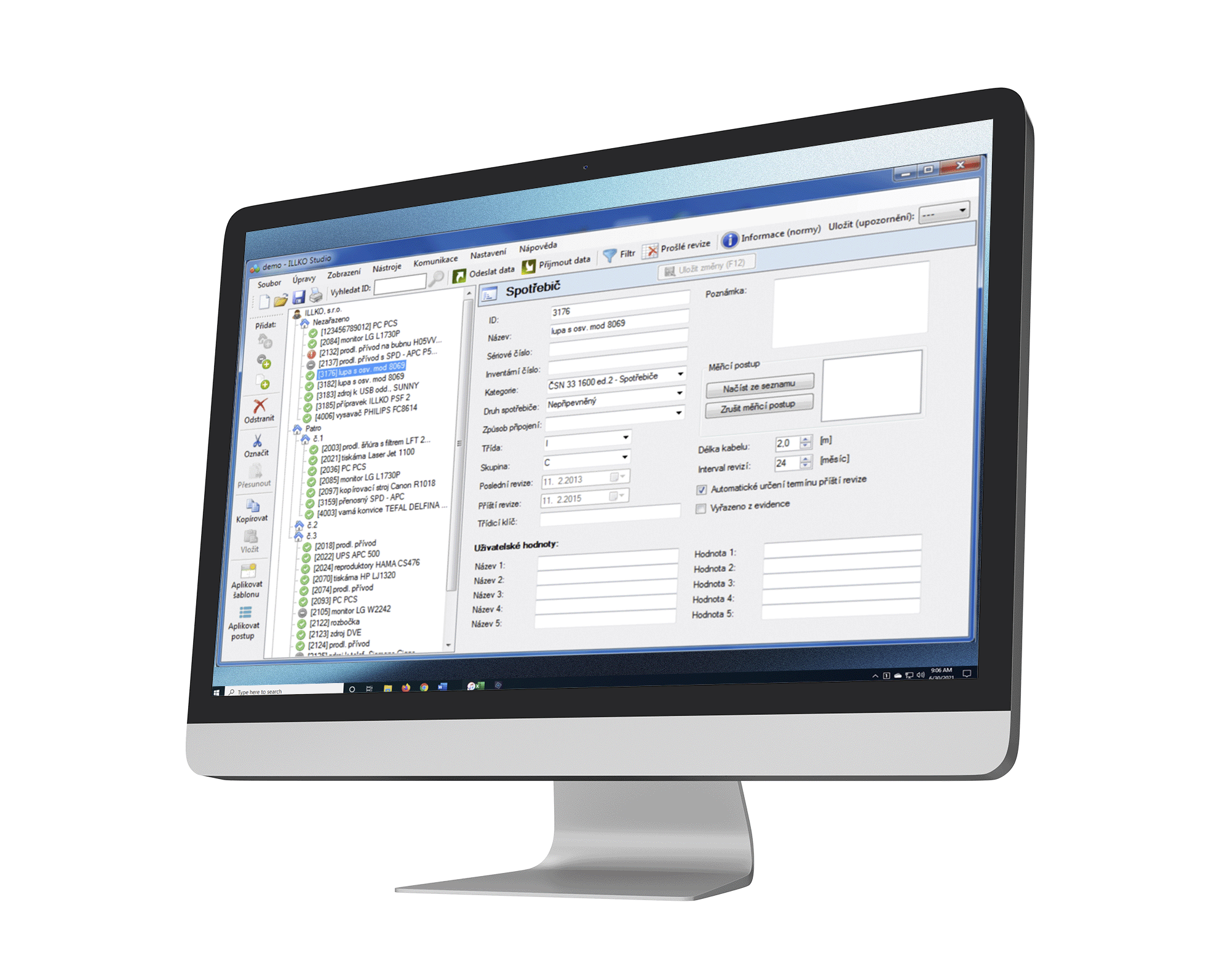
Illko Studio
Test, inspection and inspection management program for electrical appliance
- Can be used independently or in cooperation with MDtest, REVEXmax, REVEXprofi, REVEXprofi II and REVEX 2051 devices
- importing data from REVIZEprofi 1.6 and REVIZEprofi 2
- The user has full control over the test results
- applianceare transferred on the PC side, not in the device → faster data merging
- exporting/importing in CSV format is lossless (i.e. the information is complete)
- possibility to export also to XML file
- Automatic insertion of the technician’s signature into the output forms
License information
You can download the software here, you need to purchase a license to use it.
| FREE | when purchasing MDtest, REVEXmax |
| FULL PRICE | listed in the price list |
Illko Studio View
Electrical applianceTest Viewer
- The program is designed for viewing, searching or printing test reports of electrical appliance
- Changes to individual items are prohibited
- file for viewing (i.e. appliance) is generated using the ILLKO Studio program
- The file is protected against possible misuse (it cannot be used to create a full-fledged database, only some data is stored in it during creation)
License price
FREE

Download
CURRENT VERSION (04/28/2025, Windows 7, 8, 10, 11)
> ILLKO Studio View 1.27 (freeware, browser only)
Other files
Sample database for ILLKO Studio
Sample database for ILLKO Studio View
Extension forms for ILLKO Studio / ILLKO Studio View (12.12.2022, program version 1.24 and higher)
List of changes in the program ILLKO Studio / ILLKO Studio View
Older versions
ILLKO Studio 1.26 (15/05/2024)
ILLKO Studio 1.25 (12/12/2022)
ILLKO Studio View 1.26 (15/05/2024)
ILLKO Studio View 1.25 (12/12/2022)
USB drivers
USB drivers for REVEX and MDtest
Download
USB driver 2.12.36.20 (executable for Windows 7, 8, 10, 11)
USB driver 2.12.36.20 (ZIP format for Windows 7, 8, 10, 11) – includes driver for older REVEXprofi, REVEXprofi II and REVEXplus USB devices
Note: The driver is in ZIP format, for manual installation you must first unzip this file.
Older driver versions:
USB driver 2.08.24 (executable for Windows XP, Vista)
USB driver 2.08.24 (ZIP format for Windows XP, Vista) – includes driver for older devices REVEXprofi, REVEXprofi II and REVEXplus USB
Note: The driver is in ZIP format, for manual installation you must first unzip this file.
FAQ
License
On how many PCs can the program be installed?
By purchasing one license of the Program, you acquire the right to install and use the Program on two computers, provided that the copy of the Program is never loaded in the RAM of one computer at the same time as the copy loaded in the RAM of the other computer, and provided that both computers are operated by you.
Is the license limited in time?
Isn’t.
What is the limitation of the DEMO version?
Cannot save database, print / import / export / send / receive => max. 20 appliance
Working with the program
In the main menu, it is not possible to sort applianceby name.
The program sorts the list of appliancealphabetically. The tree displays the applianceID first, so the sorting cannot be changed.
For a newly installed appliance, it is not possible to manually set the date of the next test and the test result.
The date of the next test and the result are determined AUTOMATICALLY based on the latest measurement date and test interval. If a new appliance is inserted, it is necessary to insert a new measurement with empty values (Ctrl+M). You can write in the note, for example, “Default check”, etc. It is then documented that the inspection of the new appliancewas actually carried out (including the name of the authorized person).
Can the database be stored on a network drive?
Yes. However, it must be ensured that only 1 user accesses the database at a time – when the database is accessed and saved by another user, all changes made by the first user will be lost (the program does not check for database locking).
The appliance has moved to another customer (i.e. to another database). How to proceed?
Select the specific appliance(s) and export it to a CSV (all measurements) file. Do not open the CSV file! Open another customer and import the CSV file. When importing/exporting a CSV, ALL data is transferred without loss.
The previous software was able to automatically number a new applianceaccording to a predefined form. This program can't do that.
Previous software used custom settings for each database. That brought a lot of problems. ILLKO Studio has only global settings, which are the same for all databases (files). Therefore, it is not possible to do automatic numbering for each customer separately with remembering the last value of the appliance.
In the basic tree view, "all is not expanded/collapsed" and you can't see "plus" and "mínus" symbols.
The program is designed to optimize RAM – previous programs loaded complete database structures into RAM (hundreds of MB) and then it was possible to use these functions. ILLKO Studio loads only the recording structure that the user sees on the screen into RAM.
Is it possible to import data from MS Excel, LibreOffice Calc, etc.?
Yes – using a CSV file. The file you want to import (e.g. created during export from your information system, the inventory file of appliance, etc.) cannot simply be converted to CSV format. You must proceed as follows:
- Create 1 appliance without measuring in ILLKO Studio
- Export this appliance to a CSV file (menu File-Export> to CSV-Last> measurement)
- Open the newly created CSV file (beware of automatic column formatting – e.g. removing “0001” -> “1”)
- Copy the desired columns from the original file to the newly created CSV file
- Import the CSV file (menu File-Import> from CSV) into ILLKO Studio (only new appliance will be added to the database; the existing appliancewill be preserved and the parameters will not be changed)
Notes:
- Do not delete empty columns
- You do not need to fill in the LastRev, NextRev, AutoRev, Result, or Archive columns (they can remain blank)
- If you get an error during import, check and possibly change the decimal point after a comma (or vice versa) in the CableLen column (depending on Windows settings)
Can multiple users work with the program at the same time within one database?
The program is primarily designed for a single user who works alone on a specific database. If multiple users work on one database, the individual DBs must be modified during the merge.
When merging DB (importing from CSV), the rule is that new records are added (appliancee or measurement), but existing records cannot be modified for security reasons.
Example:
Technician A (or another user who completes the resulting DB)
Technician B
Technician C
Procedure:
- A+B+C technicians download the complete DB from the server, send the data to the device, perform revisions
- A+B+C technicians download the data from the device to a PC and make adjustments, or remove the appliancefrom the register
- Technicians A+B+C modify the DB in this way:
– open Filter (F3 key)
– check the option (under the table): “Show appliancee” -> Only valid
– read all appliance, sort by the date of the last check
– delete appliancethat have the last inspection older (i.e. the technician has not revised them)
– applianceremoved from the register will remain in the DB (only valid appliancehave been deleted) - Technicians B+C will send their modified (incomplete) DB to Technician A, which will contain only the appliancethey have worked with + applianceremoved from the register
- Technician A (or another user) merges the DB in the following order:
– imports (merges) B into A
– imports (merges) C into merged A+B
– in case of other users, it continues in the same way (imports D into A+B+C, etc.)
– finally merges the original DB from the server into A+B+C(+D…) to appliancethat no technician has worked with - The resulting DB is stored back on the server
Note: If an appliance returns from discarded to valid, this change must be made manually (the new measurement will be added to this applianceeven during merging, but the “Removed from Registration” flag will not change). In the filter, there is again the option to perform a bulk check, i.e. to display only the appliancee Removed from the register and sort them according to the date of the last inspection – if a new date appears there, it is clear that the appliance has been revised (found) and the status of Removed from the register must be manually adjusted. If there are more of these appliance, they can of course be modified in bulk.
For a technician or measuring instrument, different data is printed in the form, even if the data in the program settings are correct.
Data about the technician (including the stamp) or the measuring device are copied from the program settings to the Measurement record only when downloading data from the device. These data are not permanently linked to the program settings, i.e. it is not enough to change the settings, but a bulk modification must be made:
- Run the filter (F3 key)
- Press the “Load and display appliance” button
- Select all appliancee (CTRL+A)
- Switch to the “Measurements for selected appliance” tab
- Click on the relevant column to sort by date, or apply a filter
- Mark the selected observations that will be affected by the change
- Press the “Edit selected measurements” button
- Select Technician and/or Measuring instrument and select data from the list
- Save your changes
Note: The technician’s stamp is generated in the forms only in cases where the Technician’s Registration Number for a specific measurement is exactly the same as the Technician’s Registration Number specified in the settings. If the signature is not displayed, make bulk edit of the Measurement records.
